Auto-replies for hotel WhatsApp, set up free
Set up a greeting, an away message and saved quick replies in the free WhatsApp Business app. No developer needed, about 20 minutes.
3 min read · Checked
The three auto-replies at a glance
Step 1: Set up the business profile
- Install the free WhatsApp Business app on the phone the front desk uses and register the hotel's number. If that number is already on regular WhatsApp, the app offers to move your chats across.
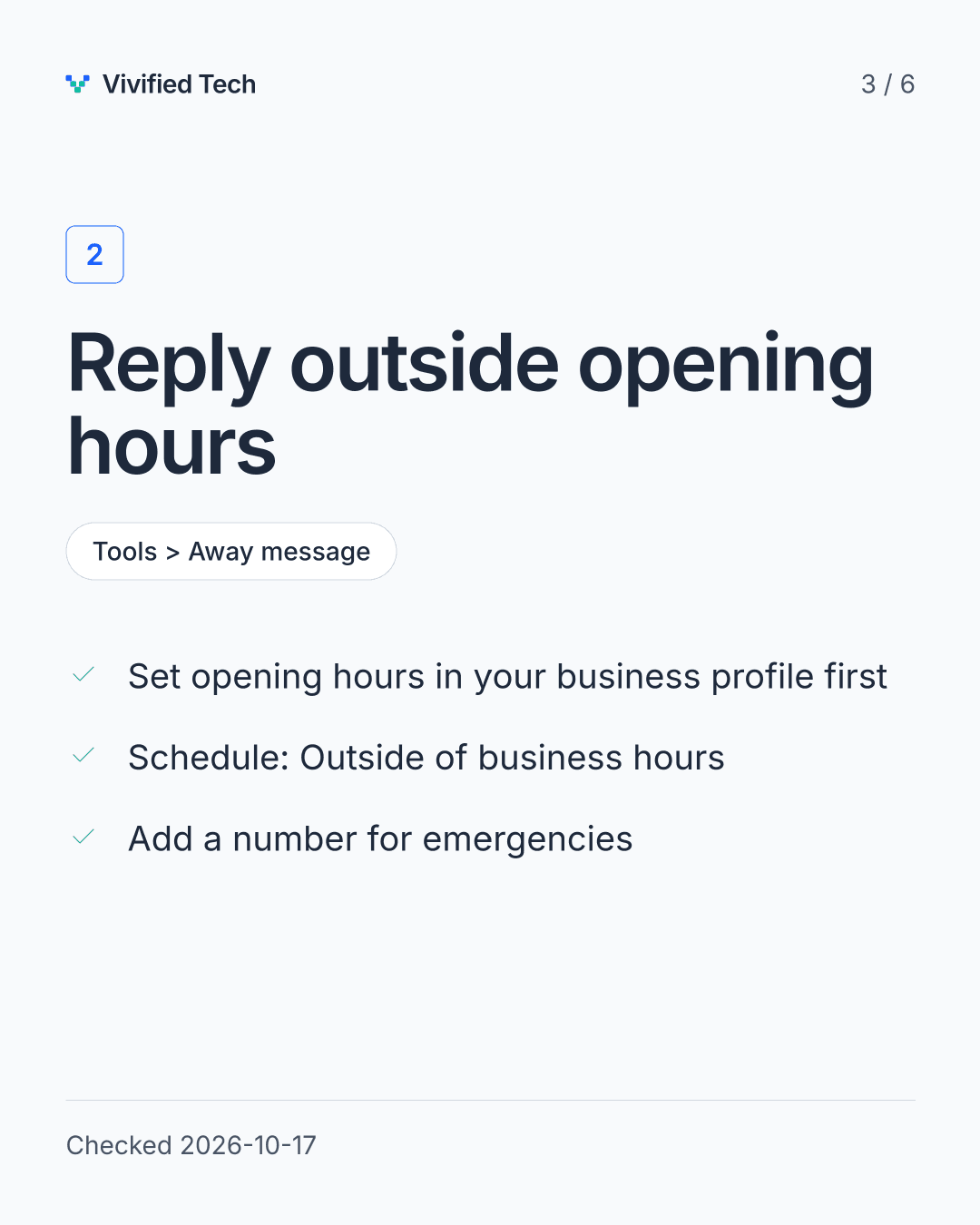
- Open the business profile and fill in the hotel name, address, website and opening hours. The after-hours option in step 3 only appears once hours are set.
Step 2: Greet new guests
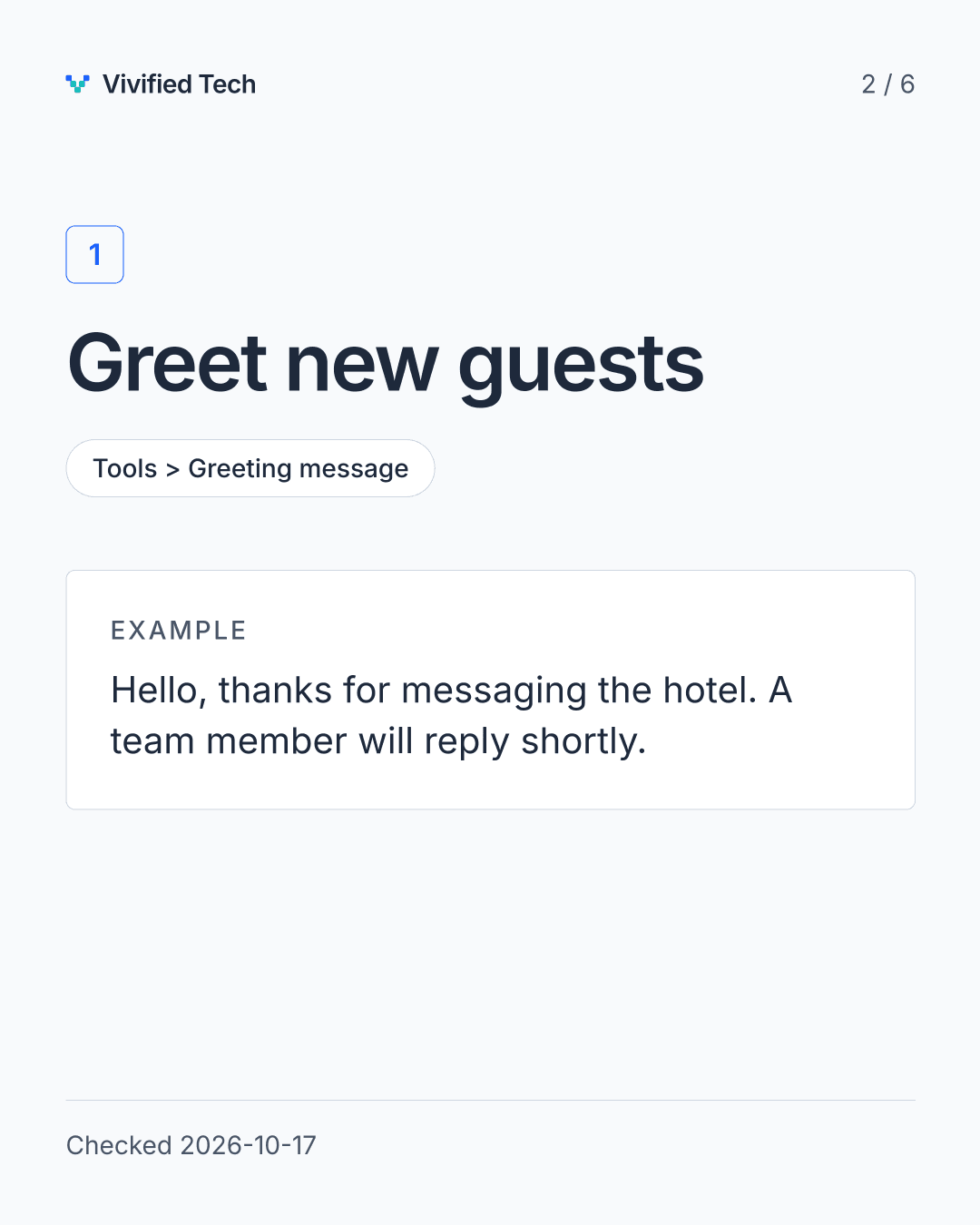
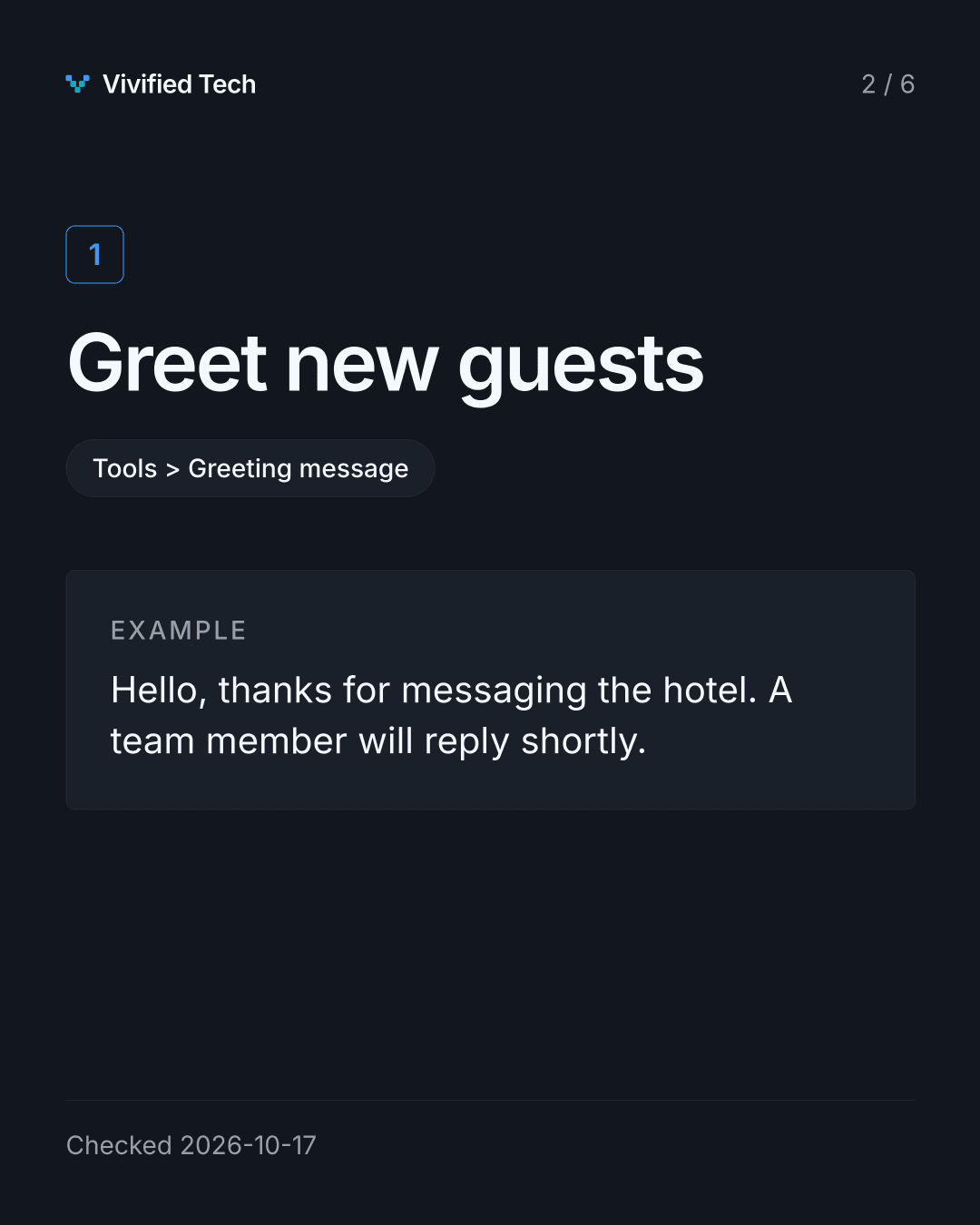
- Open the Tools tab (in older versions: Settings, then Business tools) and tap Greeting message.
- Switch it on and write the text. Keep it to what a guest needs in the first ten seconds.
- Under recipients, pick everyone or only numbers that are not saved in your contacts.
Example: Hello, thanks for messaging the hotel. A team member will reply shortly. For urgent matters during a stay, call the front desk on [number].
Step 3: Reply outside opening hours
- In Tools, tap Away message and switch on Send away message.
- Write the text. Say when a person will be back, and give a phone number for emergencies.
- Under Schedule, choose Outside of business hours. The other options are always send and a custom schedule.
- Under Recipients, choose who gets it, then save.
The phone needs an internet connection to send away messages, per WhatsApp's help page.
Step 4: Save the answers you type every day
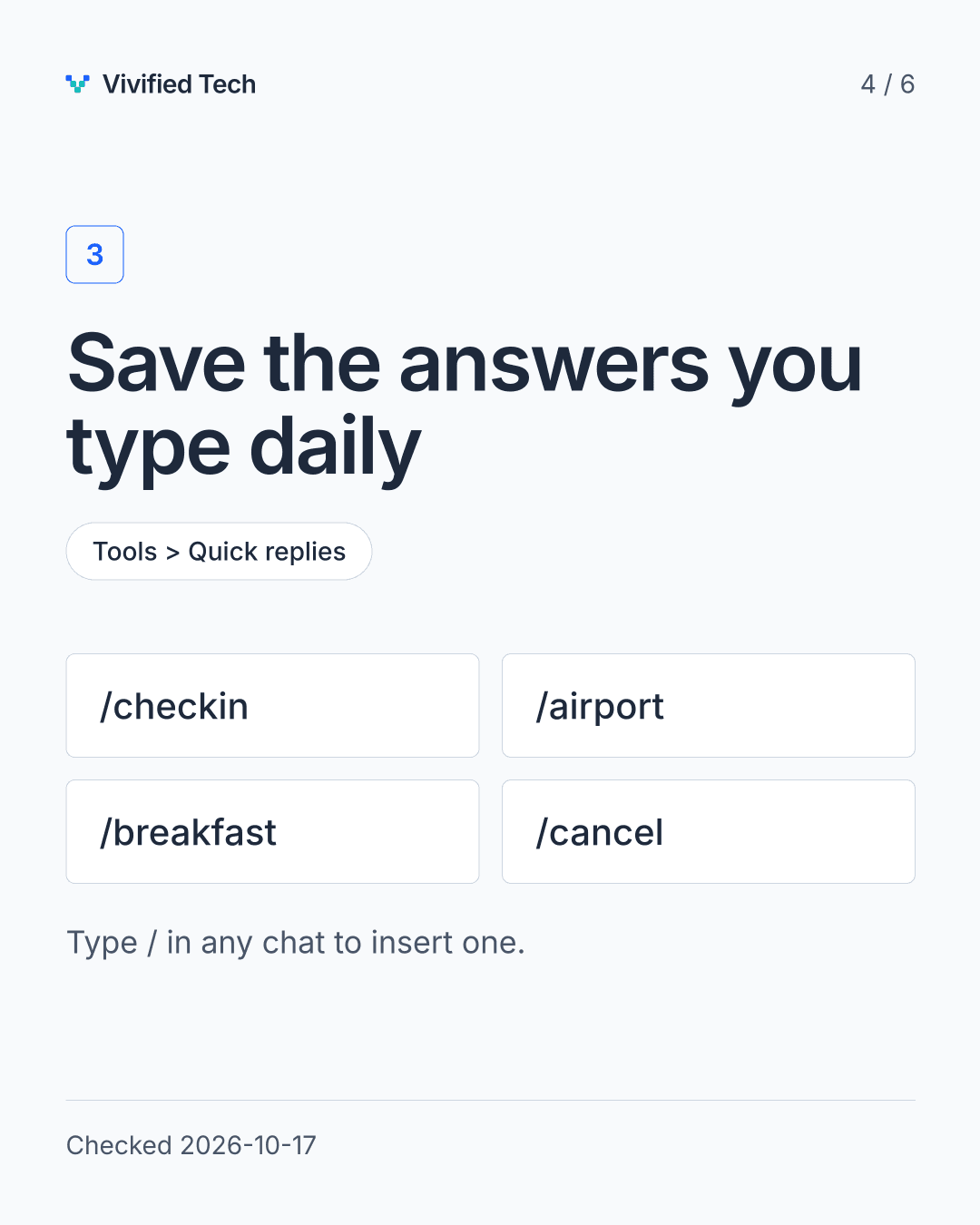
- In Tools, tap Quick replies and add a new one.
- Write the full answer, then give it a short shortcut such as
/checkin. - In any chat, type
/and pick the reply. Edit one line if needed and send.
Start with the questions you answer most: check-in and check-out times, directions from the airport, breakfast hours, parking, late arrival and your cancellation rules in one sentence each. WhatsApp's help page says the app stores up to 50.
Details and limits
Checked on 2026-10-17. Menu names move around between app versions, so look for the same words if yours differ.
What it does and doesn't do
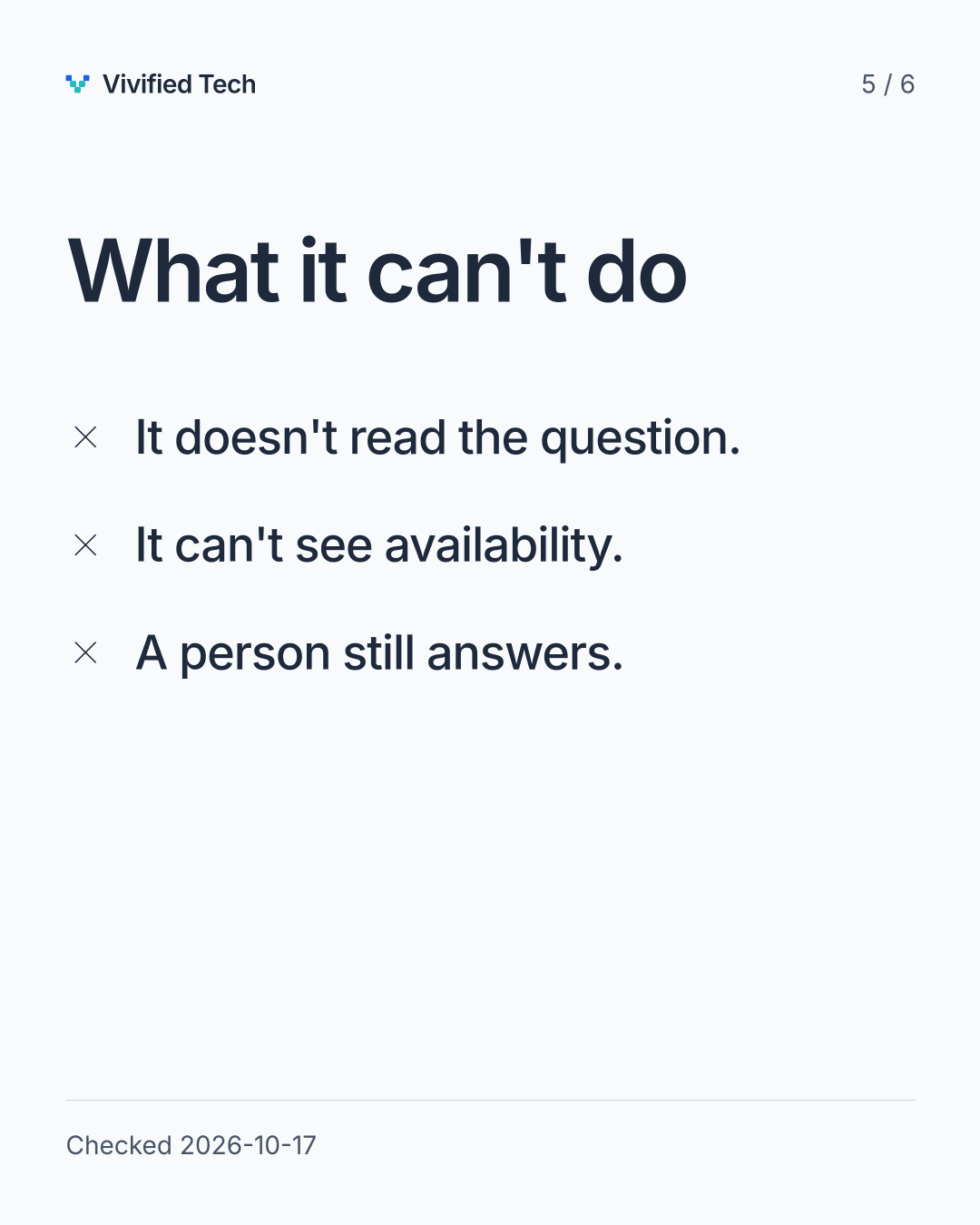
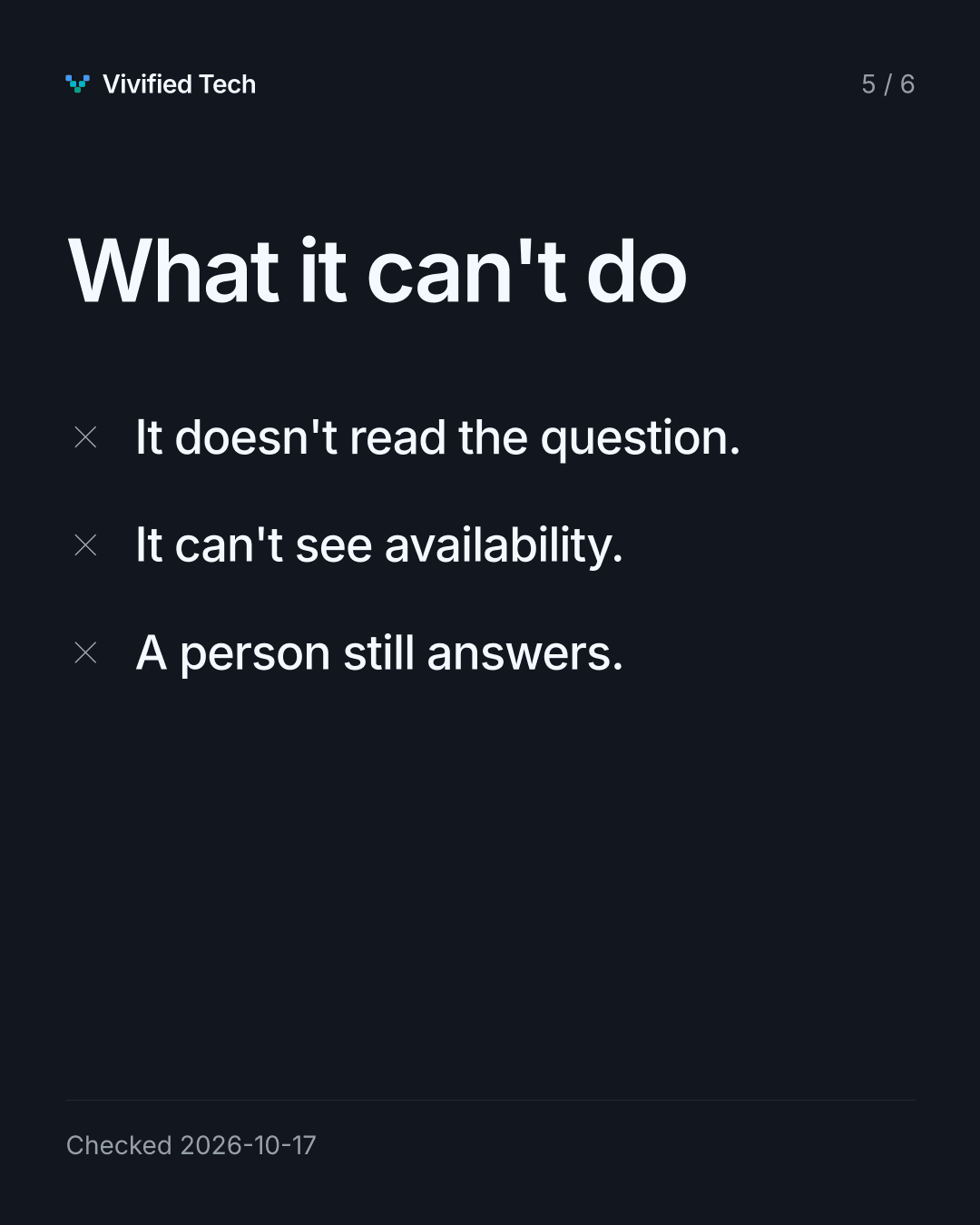
It sends a fixed message at the right moment and lets you insert saved answers into a chat. Together the three tools cover the first reply, the after-hours reply and the ten answers your team types every day. It does not read the guest's question or look up availability. A person still answers anything specific.
Limits
- The app is free. Everything here is included, and nothing else is needed.
- It is one business number on a phone, with no routing between staff and no live availability.
- The WhatsApp Business Platform, which connects WhatsApp to other software, is a different product with its own charges. This guide does not use it.
- Limits and menus change. Re-check against WhatsApp's help pages if something looks different.
When this stops being enough
When guests ask on WhatsApp, LINE, Instagram and Messenger at once, or want today's rates and availability in the reply, saved text starts to fall behind. We are building an assistant for that work. The guest messaging assistant page describes the design, not results. If your front desk is stuck at that point, tell us about it.
Read how the no-build-fee model works.
Sources
- WhatsApp Business app: what you get (WhatsApp for Business)
- How to use away messages (WhatsApp Help Center)
- How to use quick replies (WhatsApp Help Center)
Related guides
Have a task like this?
Tell us the repetitive task and we'll say honestly whether we can automate it.